











Zabaware Text-to-Speech Reader
The Zabaware Text-to-Speech Reader is an application that uses a speech synthesizer to read documents and more outloud. It is available for free with generic voices or sold with high quality CereProc or AT&T Natural Voices at the lowest prices in the industry.
Features and Uses
- Read documents, emails, web pages, clipboard contents and Windows dialog boxes out loud in one of many high quality voices.
- Add up to 11 high quality AT&T Natural Voices to Ultra Hal (above) and any other SAPI compliant application.
- You can use advanced CereVoice by CereProc to achieve voices that sound real and have character.
- Assists people with reading disabilites (including dyslexia) and concentration problems (including ADD/ADHD). By reading along as it speaks you combine your visual and auditory senses to help comprehend and concrentrate on the topic.
- Quickly devour large amounts of reading material through speed reading. Simply set the speech speed high and read along as the program flashes on the screen the word it speaking.
- Using the science of rapid serial visual presentation the program helps reduce eye movement while reading and adds supplementary fast spoken speech for increased comprehension.
- Text can be saved as an audio file for transfer to an audio CD or iPod/MP3 player so you can listen on the go.
- Helps with proofreading your own work. Hearing your documents spoken outloud makes it easy to spot mistakes.
- Can be useful for the visually impaired. With the clipboard reading functionality you can highlight any text in any program with your mouse and then hit CTRL-C to read it outloud.
Download Now
Click here to download the free version of the Zabaware Text-to-Speech Reader. The free Zabaware Text-to-Speech Reader includes many high quality computerized voices. Also available for purchase is an Zabaware Text-to-Speech Reader bundled with AT&T Natural Voices. These voices provide synthesized voices almost indistringuisable from real human speech. Click here for more info and to hear the voices for yourself.
Help Contents
The Zabaware Text-to-Speech Reader Interface
Opening and Reading a Text File
Choosing and Configuring a Voice
Using the Clipboard for Reading Internet Pages and Email
Automatically Reading Standard Windows Dialogs
Converting a Document into WAV Audio File
The Zabaware Text-to-Speech Reader Interface
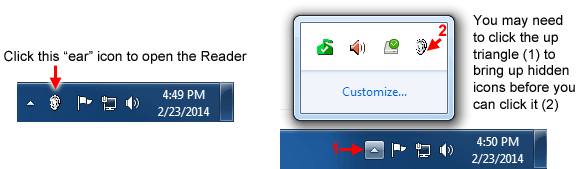
By default, the Zabaware Text-to-Speech Reader starts with your computer and puts its icon in your system tray. You can start the Zabaware Text-to-Speech Reader by clicking on the "ear" icon in your system tray, as illustrated here:
The program needs to be running in order to automatically read dialog boxes, clipboard contents, and instant messages. If you do not plan to use any of these features and do not wish for the program to automatically start with your computer, you may simply remove its shortcut from your startup folder located in the start menu. You can always manually start the program from its own shortcut located in the start menu. Once you start the program, you will see an interface like this:
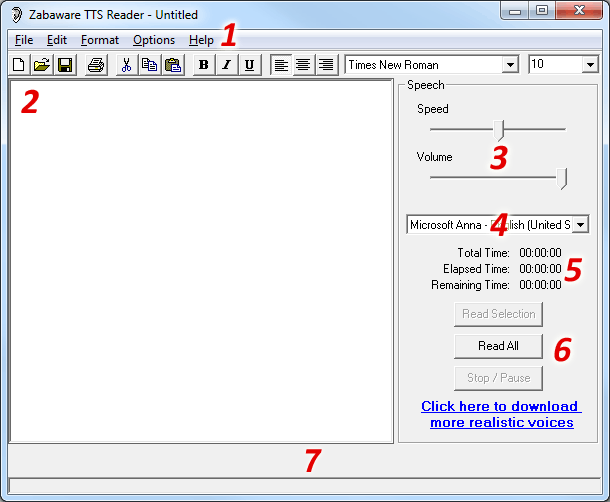
1) This is the menu bar where you can open documents, format the document, and set program options. 2) This is where the document appears. You may edit the document here, or make a selection in order to speak it. 3) These are the voice controls. They control the speed and volume of the currently selected voice. 4) This dropdown list lets you choose which voice you wish to use. 5) When a document is being spoken, the program will estimate how long it will take to speak the entire thing and post that information here. Also, a progress bar on the bottom of the program will show the percentage of text spoken as well as the current word being spoken. 6) Clicking the "Read All" button will read the entire document. If you make a selection (highlight) in the document, you can click "Read Selection" in order to read just that part. Clicking "Stop" will stop the program from reading and will automatically select the remaining text so that you can easily resume with the "Read Selection" or "Continue" button. 7) When the program is speaking the current word being uttered appears centered here. If you keep your eyes focused here you can read along without moving your eyes. If you increase the speech speed using the slider you can engage in speed reading using the science of rapid serial visual presentation
Opening and Reading a Text File
The Zabaware Text-to-Speech Reader is very similar to the Windows program WordPad. It can open any text file (*.txt) or rich text file (*.rtf). This program can be used to edit, format, and save text files just like WordPad. You can change font type, size, alignment and color using the controls in the toolbar and menu bar.
To open a file simply click on "File" and "Open". Find the location of the file and click "Open". This program will only open .TXT and .RTF files. If the document you wish to open is not one of these formats, you should either convert the file into a text file or simply copy and paste the text.
If you wish to read the entire document, simply click on the "Read All" document. If you wish to read only part of the document, first make a selection of the text by holding down the left mouse button and dragging your mouse over the text. After it is selected (highlighted) you may push the "Read Selection" button to read just that part.
If at anytime you wish to stop or pause the speech you may push the "Stop" button. If you wish to resume the speech, simply click the "Read Selection" button as the program automatically selects the remaining text whenever you push "Stop".
Choosing and Configuring a Voice
The Zabaware Text-to-Speech Reader is compatible with any SAPI 4 or SAPI 5 compliant speech synthesizer. This program includes the voices "Mike", "Mary", and "Sam" and variations of these 3 voices. It is possible you may have other voices installed also. To select a voice, simply click on the drop down list located on the right hand side of the interface and click on a different voice:
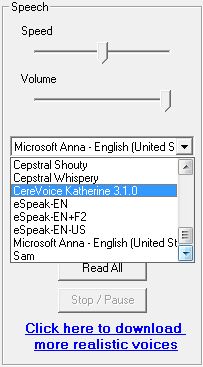
Once you choose a voice, you may change its speed, pitch, and volume using the 3 slider controls shown above. These controls may be changed while the program is speaking. Most voices also have advanced speech and pronunciation settings available. To change pronunciation settings, click on "Options" in the menu bar and then "Pronunciation Settings for Current Voice" To change advanced voice settings, click on "Options" in the menu bar and then "Advanced Speech Options for the Current Voice"
Using the Clipboard for Reading Internet Pages and Email
The clipboard function of the Zabaware Text-to-Speech Reader automatically monitors your clipboard for text changes. Every time you copy some text into the clipboard, this program will automatically read it out loud. This can be great for reading internet pages out loud and email messages. First, make sure this option is turned on. If it is not, simply click on "Options" in the menu bar and put a checkmark by the option that says "Read Clipboard When Text is Copied"
Now, lets say you are browsing an Internet page and you would like the program to read it outloud. Simply select (highlight) the text you would like to be spoken by holding the left button down and dragging the mouse over the text. After you selected the text you can copy it by pressing CTRL-C or by clicking on "Edit" and "Copy" As soon as you do this, the Zabaware Text-to-Speech Reader will automatically start speaking this text. You can use this method to make every program speak!
Automatically Reading Standard Windows Dialogs
The Zabaware Text-to-Speech Reader program is able to automatically read out loud all standard windows dialogs that pop up. For example if you try closing a document without saving it first, it will pop up a dialog asking whether you wish to save it or not. The Zabaware Text-to-Speech Reader will automatically read this dialog and all other standard dialogs out loud. If you wish to use this function make sure this option is turned on. If it is not, simply click on "Options" in the menu bar and put a checkmark by the option that says "Read Text From All Dialog Boxes"
Converting a Document into WAV Audio File
The Zabaware Text-to-Speech Reader program is able to both speak documents out loud and convert them into Windows PCM WAVE (.WAV) files. It will create a 16-bit 22kHz mono wave file, as this is what most speech synthesizers actually output. To convert text into a WAVE file first open the document so that it appears inside the application. Next click on "File" from the menu bar and click on "Convert Text into WAV audio file" The program will ask you where to save your WAV file. Give it a location and click "Save". Next the program will ask you what voice you would like it to use. Choose a voice from the list and click "OK" The program will then convert the text into an audio file. It will give you a time estimate of the process and show you its progress. After its done you will have a WAVE file that you can listen to, burn to audio CD, or convert to MP3!
News
- New Ultra Hal 7.5 Beta with GPT-3
- Zabaware releases new Ultra Hal 7.5 Beta Powered by OpenAI GPT-3 (read more)
- Hal plays role in Prometheus movie
- Zabaware's AI software was used in the Secret Cinema production of Prometheus. (read more)
- Open source 3D character engine project
- Help support our efforts in the next generation character animation tech. (read more)
- Hal Learns and Interacts on Twitter
- Hal learns to be more human-like by observing people interact on Twitter. (read more)
- Hal Joins Facebook as Teachable App
- Watch Hal grow and evolve while he interacts with your Facebook friends. (read more)
- Hal Joins Second Life Metaverse as Resident
- Watch Hal trying to interact socially with unsuspecting groups of people. (read more)
- Zabaware Wins Loebner Prize for AI
- Ultra Hal wins "most human" prize in the 17th annual Loebner Prize. (read more)